
Parent Guide - How to Submit Lunch Orders for your Student(s)
Learn how to navigate the MySchoolworx parent portal to select and submit daily lunch orders for your children. This guide provides a simple walkthrough to ensure your students' meal requests are processed correctly and on time.
- Navigate to portal.myschoolworx.com. You will login to your MySchoolWorx parent account using the email address your school has registered you with and your unique password.
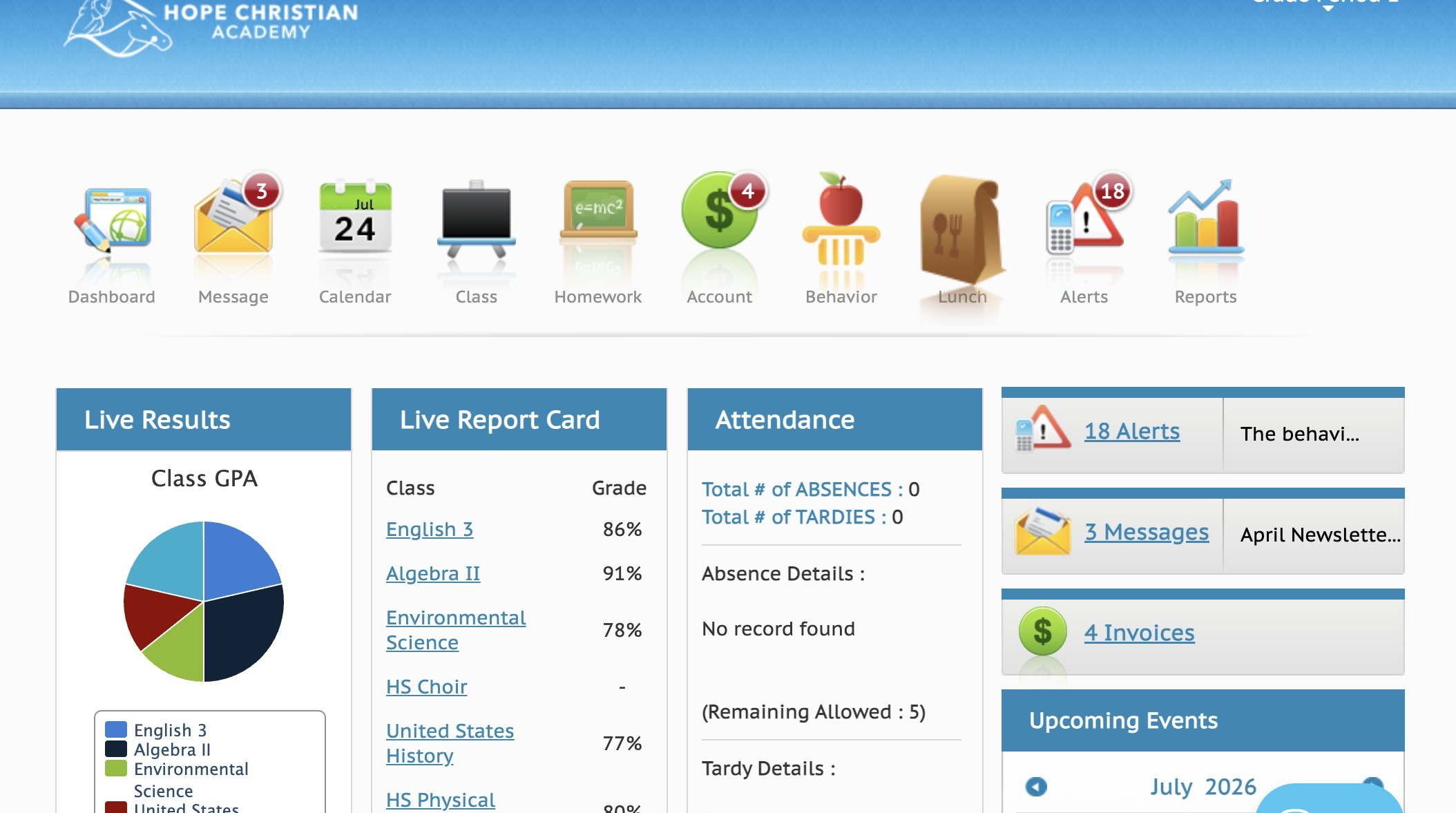
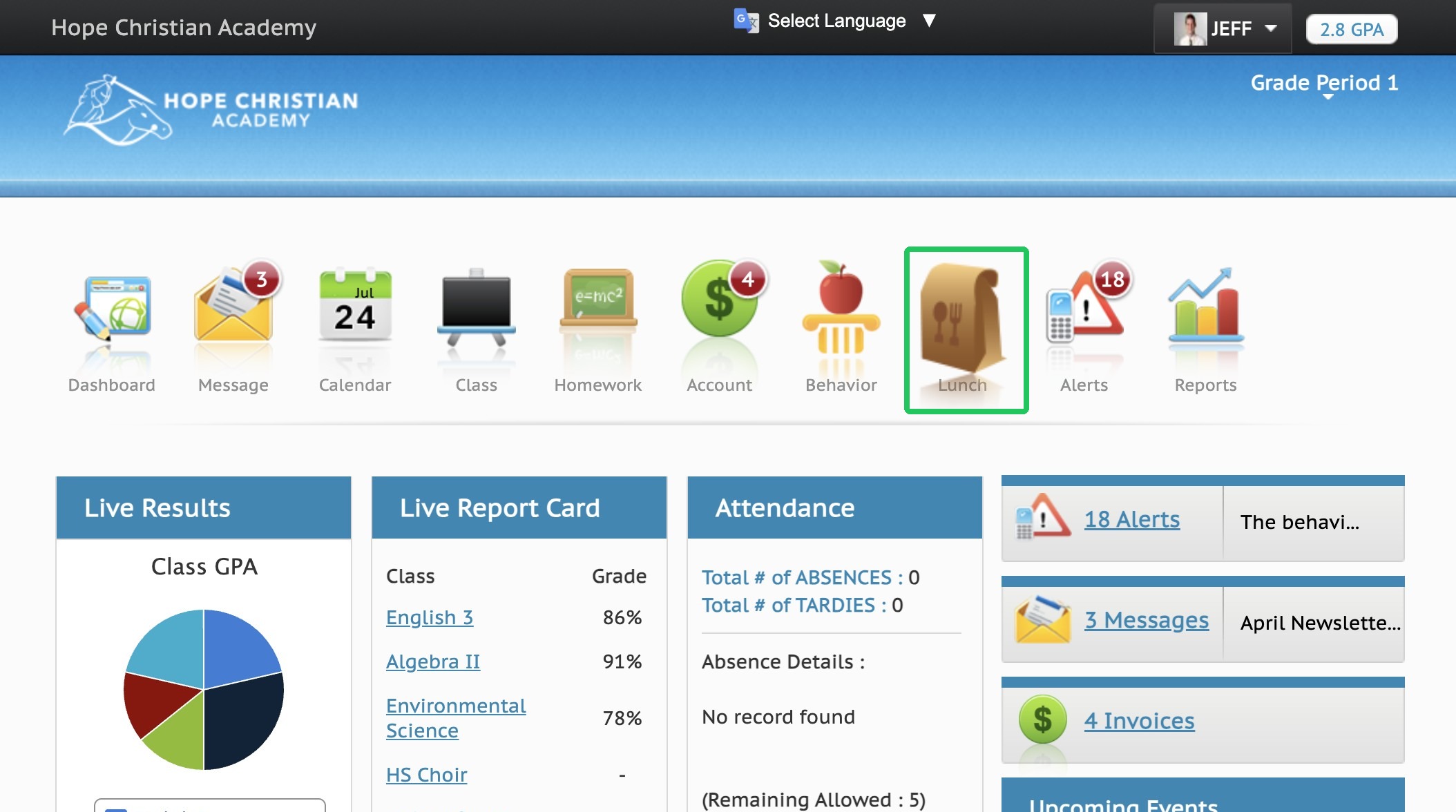
- This is your MySchoolWorx Parent Dashboard, where you can access your student's information, assignments, grades, and more. This article will primarily focus on ordering Lunch for your Student. You will select the Lunch icon on your Dashboard.
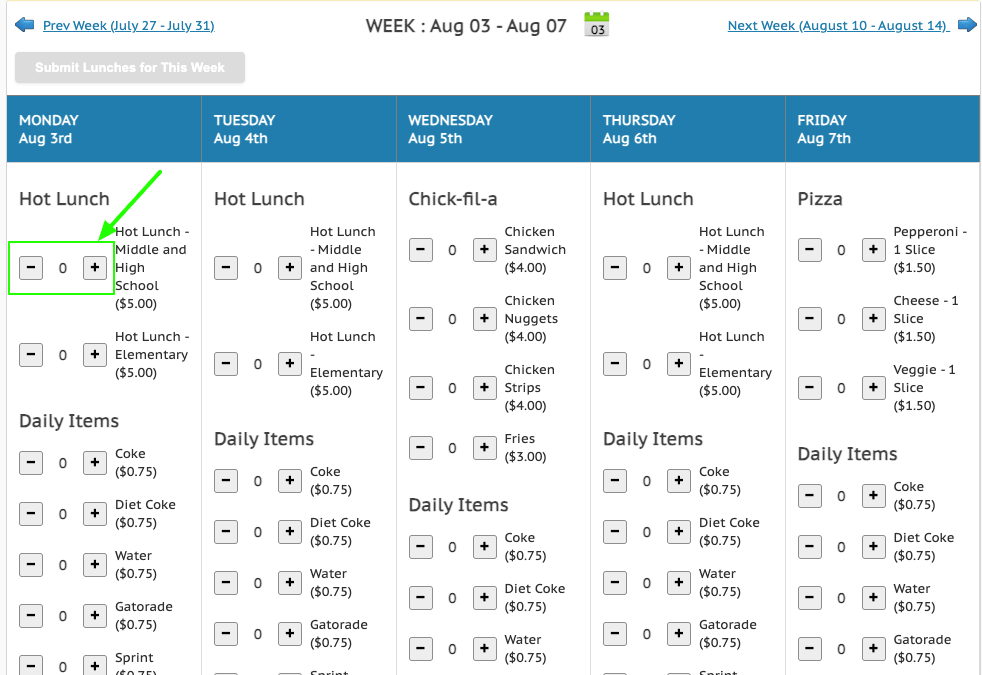
- To order for your student, use the +/- buttons to select the menu item and quantity you'd like. Once you have made your selections for every day, click the Submit Lunches for This Week button at the top left of the menu to complete your orders for the week.
- A green Submitted confirmation screen will appear once your order has been successfully submitted.
- If you need to edit your items for any future day, click the Edit button in the blue header bar for that day to edit. The menu will re-open, and you can use the +/- button to change your selections.
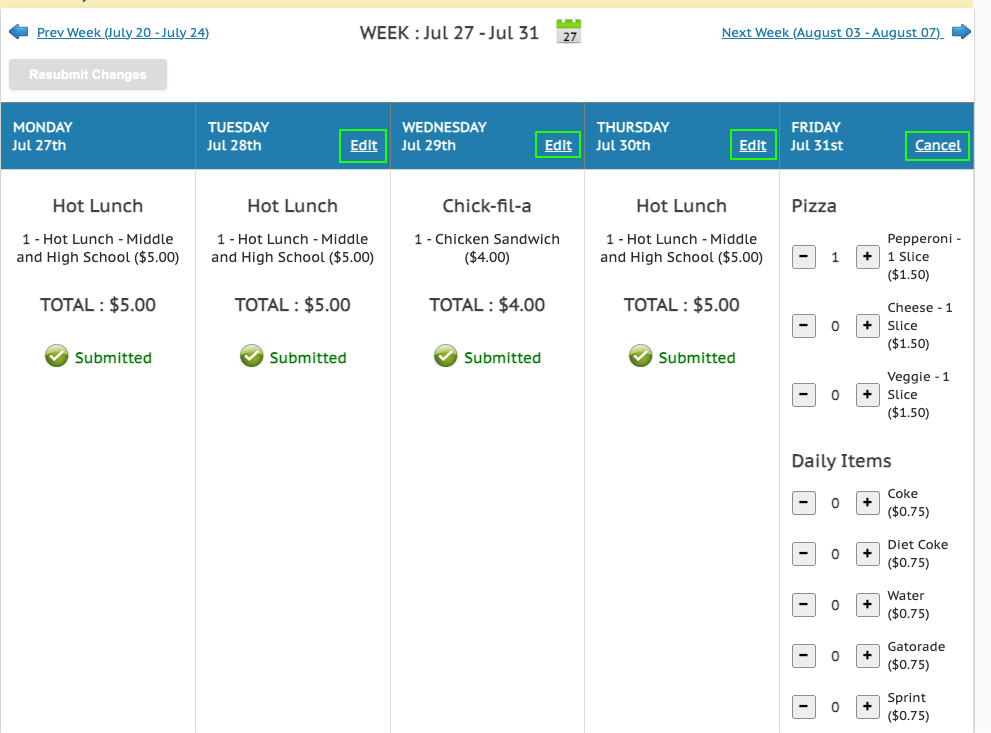
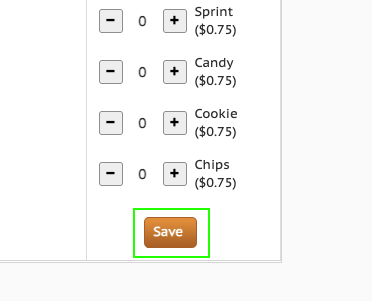
- Once you've changed your menu items, click Save at the bottom of that day.
NOTE: If you need to cancel a day's order completely, click the - button next to each item that was selected until the number is set to 0, then Save.
- If you are placing lunch orders for multiple students, select the student from the drop-down menu in the top-right corner of your portal. After submitting that student's lunch order, switch to the next student and repeat the process until all lunch orders have been submitted.